
Help/Let your AI agent reach PureFi
Let your AI agent reach PureFi
When you choose Fill it in with AI, your agent sends your application to api.getpurefi.com. Most AI apps block websites they don't know until you allow them. If your agent says it is blocked or can't connect, here is the setting to change.
Which AI do you use?
-
On claude.ai in a web browser, open Settings, then Capabilities. Turn on Use the internet while making files, then click Manage beside Allowed websites.
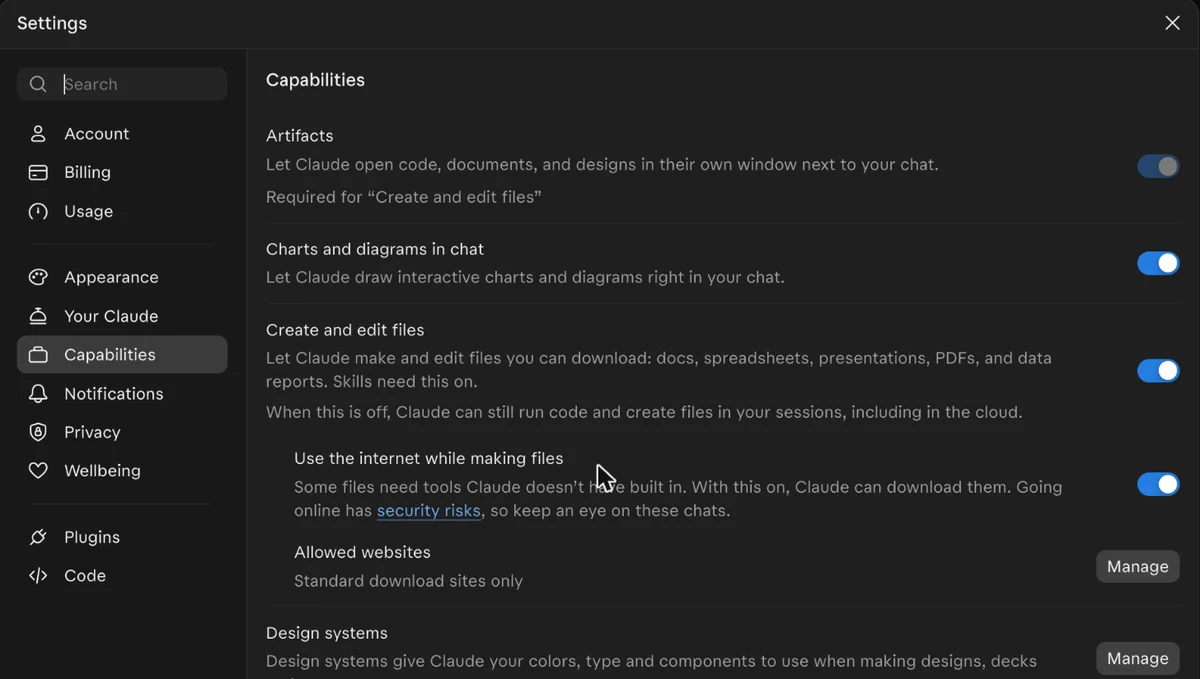
-
Under Add a website, enter
api.getpurefi.comand click Add.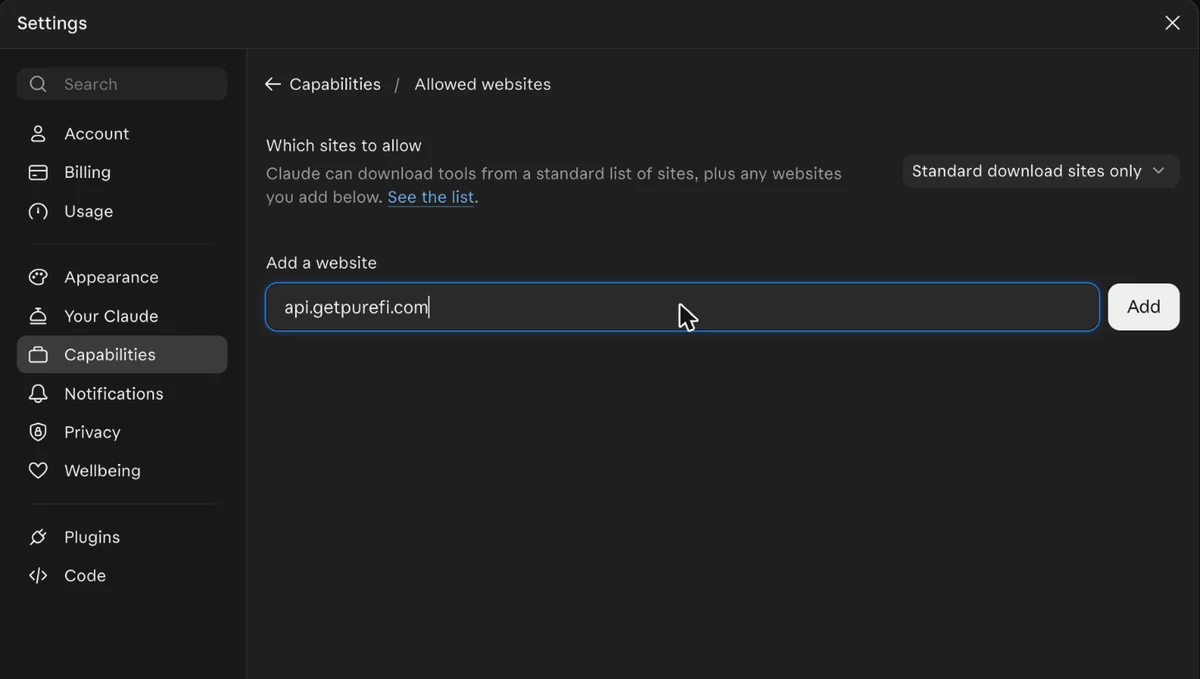
Adding a website needs a paid Claude plan. On a Team or Enterprise plan, an admin adds it for the organization.
-
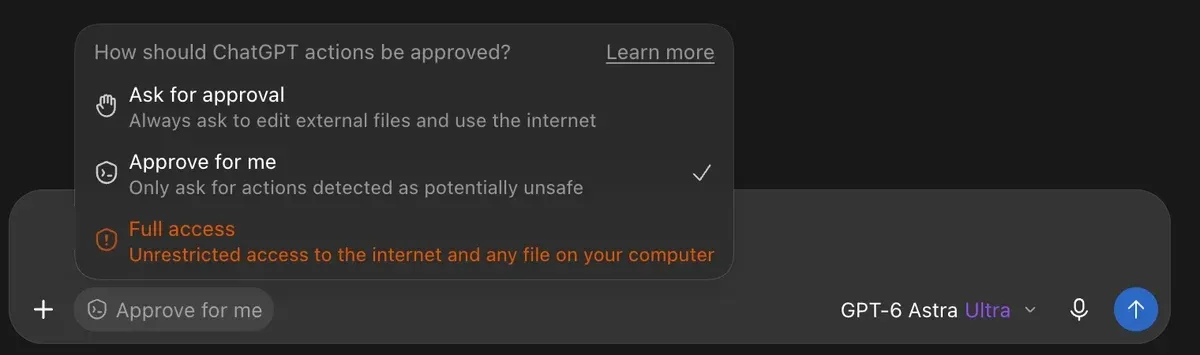
In the ChatGPT desktop app, click the approval setting under the message box and choose Full access, then click Confirm. Switch it back to Approve for me when your application is filled in.
Look in your AI app’s settings for the one that lets it use the internet or reach websites, and allow api.getpurefi.com. Your agent can usually tell you where it is: ask it which setting lets it reach that address.
Then try again
Go back to your chat and tell your agent to try again. When it works, your answers appear in PureFi Business, where you check them before anything is submitted.
Still blocked? Choose Fill it in myself in PureFi Business, or contact us from Get help.

Still need a hand?
Our support team is available 24/7 by live chat or email, in English and 6 other languages.